
ON THIS PAGE
SmartSpace.ai Workflows & Use Case Setup
Guide to setting up use cases in SmartSpace.ai: Data space creation, workspace configuration, access control, and testing for precise contenSmartSpace.ai Workflows & Use Case Setupt generation.
Workflows – Using the Visual Editor
Using the Visual Editor
Overview
The Visual Editor in SmartSpace is a powerful and intuitive tool that allows users to design and manage workflows by visually arranging and connecting blocks. This section will guide you through the essential features of the Visual Editor, including adding and configuring blocks, creating connections, and managing your workflow layout.
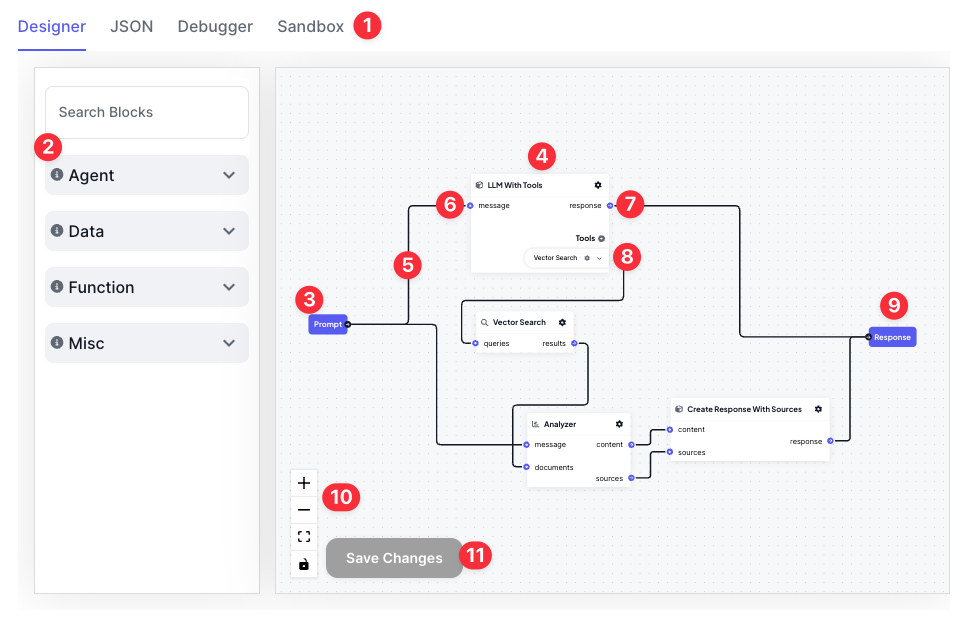
- Workflow Tabs: switch between the visual designer, the workflow JSON definition, the debugger, and a sandbox mode.
- Block Sidebar: Search and add blocks from our native blocks and any custom blocks you have created and deployed to the workspace
- Flow Input: The flow input (typically a message prompt)
- Block: Core component of a workflow. Connect together to build your flow
- Connector: How to make connections between block input/outputs
- Block Input: How data gets into a block. Connected internally to step(s) that run the block’s logic
- Block Output: The output from the block
- Block Tools:
- Flow Output: The final output from the flow.
- Layout Tools: Adjust zoom levels and lock editing
- Save Button: Saves the workflow layout and updates the flow definition for any changes/additions to blocks and block configurations.
Adding and Moving Blocks
Adding Blocks
To add a block to your workflow, simply click on the desired block from the left panel. The block will appear in the main workspace, ready to be positioned and connected.
Moving Blocks
Once a block is in the workspace, you can drag and move it to any location. This flexibility allows you to organize your workflow visually, making it easier to understand and manage complex flows.
Locking Block Positions
If you want to prevent accidental movement of blocks, use the lock feature found in the bottom left control panel. When enabled, this feature locks the positions of all blocks, ensuring your layout remains intact.
Creating and Managing Connections
Creating Connections
Connections between blocks are created by clicking on an input or output of a block and dragging the connection to another input or output. This process defines the flow of data between blocks and establishes the logic of your workflow.
Deleting Connections
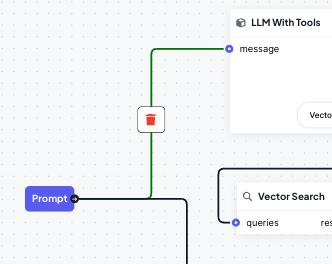
To remove a connection, simply click on the connection line and then click the delete icon that appears. This allows you to easily reconfigure your workflow as needed.
Configuring Blocks
Accessing Configuration Settings
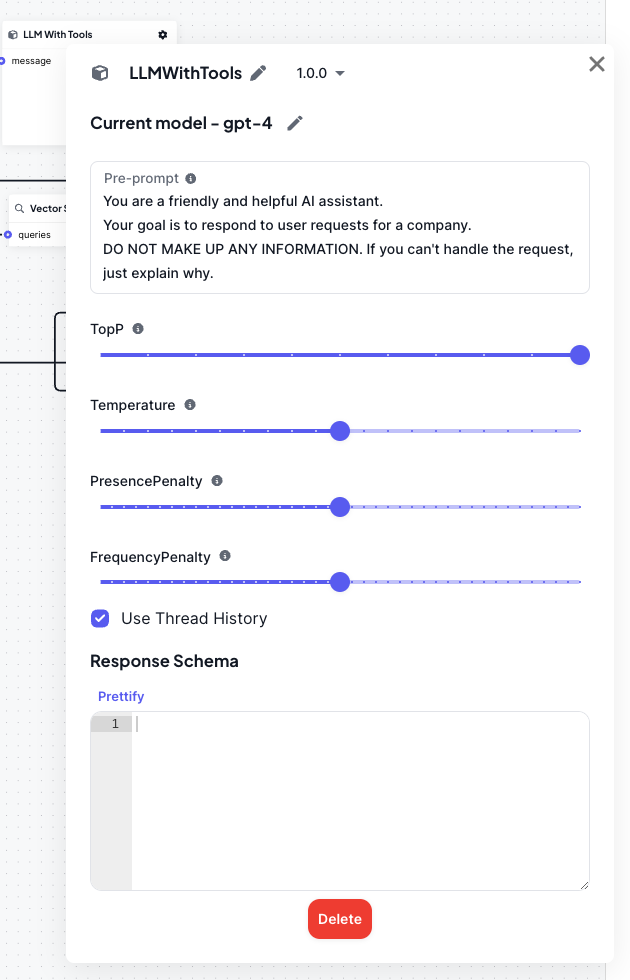
Each block in your workflow has a configuration screen that can be accessed by clicking on the gear icon in the top right corner of the block. The configuration options will vary depending on the block’s purpose and capabilities.
Editing Block Details
Within the configuration screen, you can edit the block’s name and version number. The default version number is 1.0.0, but this can be updated if versioning is available.
Managing Tools in Blocks
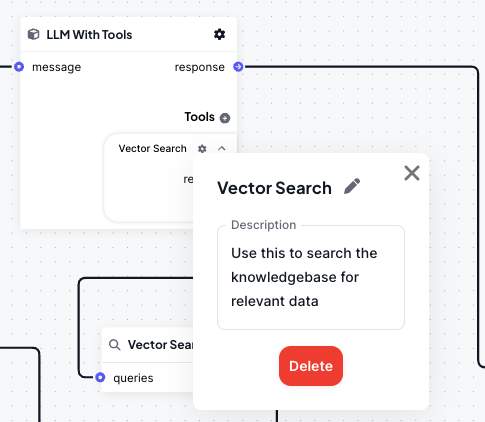
For blocks that support “tools,” a plus (“+”) sign icon will appear, allowing you to add multiple tools to the block. Each tool can be given a name and description, which helps the block decide which tool to use during execution. Tools also feature a “request” output for connecting to other blocks and a “return” input for handling callback functions.
Deleting Blocks
If you need to remove a block from your workflow, you can do so by clicking the delete icon within the block’s configuration screen. This action will remove the block and any associated connections.
Managing the Workflow Layout
Zooming and Panning
The bottom left control panel includes options to zoom in and out of your workflow, as well as fit the entire workflow to the screen. This is particularly useful for navigating large or complex workflows.
Saving Your Layout
After arranging your blocks and making configuration changes, you must click the “Save Layout” button located in the bottom left. This action saves both the positions of the blocks, and any configuration or definition changes made. The updated Flow Definition JSON will be automatically saved and can be viewed in the JSON tab.
Tooltips and Help Features
Using Tooltips
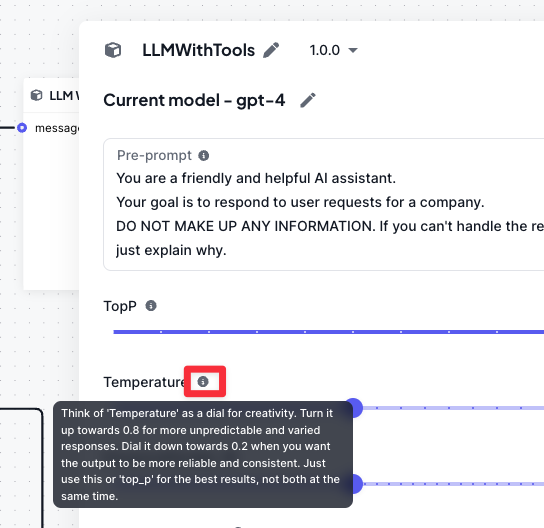
Throughout the Visual Editor, tooltips are available to provide additional context and guidance. These can be accessed by hovering over the info “i” icon, which will display more detailed information about the block or configuration option.
You may find these additional articles on Workflows useful:
