
ON THIS PAGE
SmartSpace.ai Workflows & Use Case Setup
Guide to setting up use cases in SmartSpace.ai: Data space creation, workspace configuration, access control, and testing for precise contenSmartSpace.ai Workflows & Use Case Setupt generation.
Workflows – Exploring the Sandbox
Exploring the Sandbox
Overview
The Sandbox is an interactive environment within SmartSpace that allows users to test and refine their workflows in a real-time chat interface. It simulates the experience of an end-user interacting with the workflow, making it a valuable tool for both development and testing phases. The Sandbox also provides a direct way to observe how a flow responds to different inputs and identify any adjustments needed to optimize performance.
Accessing the Sandbox
The Sandbox can be accessed directly from within your workspace. It is integrated into the SmartSpace interface, allowing you to seamlessly switch between designing workflows and testing them in a live environment.
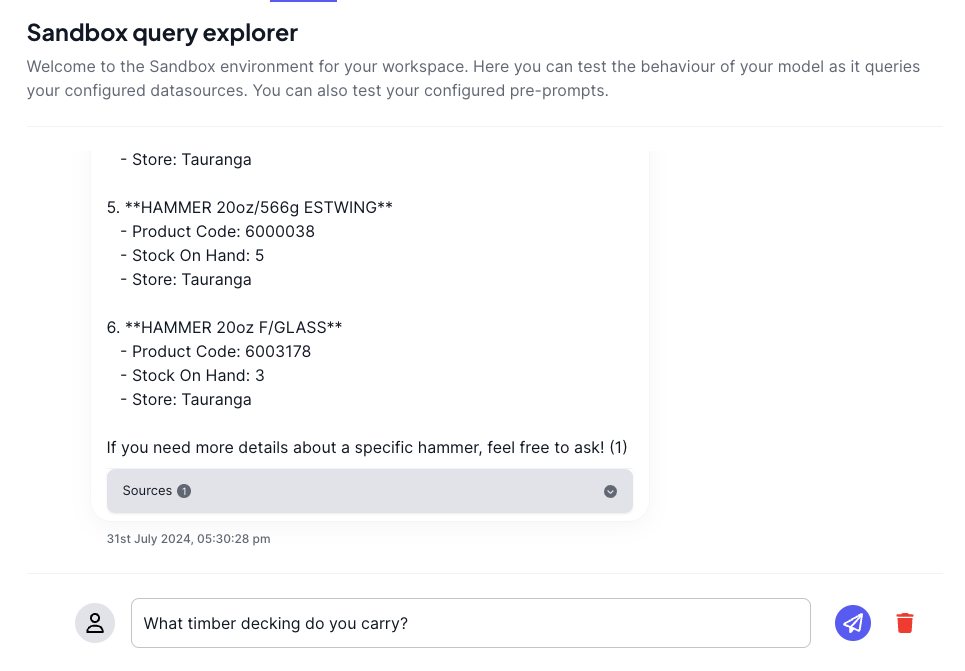
Using the Sandbox
Sending Messages: Users can send messages or queries to the workflow just as they would in a live environment. These messages act as inputs to the flow and are processed through the defined blocks.
Uploading Files: The Sandbox allows users to upload files as inputs. This is especially useful for testing workflows that involve document processing, image recognition, or data extraction from files.
To enable this feature, you will need to add a new input type into the workflow definition.
- Go to the “JSON” tab and edit the “inputs” section
- Add this JSON to the inputs array.
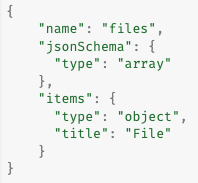
- A new “attach files” button will appear in the Sandbox UI allowing you to attach files

Viewing Responses: Once the workflow processes the input, the Sandbox will display the output directly within the chat interface. This includes any formatted responses, generated content, or other results produced by the flow.
Testing Various Scenarios: The Sandbox is designed for iterative testing, so you can run multiple test cases, each with different inputs, to see how your workflow handles a variety of scenarios. This is crucial for ensuring that the flow behaves correctly under different conditions.
Benefits of the Sandbox
Real-Time Feedback: The Sandbox provides instant feedback on how your workflow performs, allowing you to make quick adjustments without having to leave the interface.
Debugging in Context: The Sandbox works in tandem with the Debugger, allowing you to view detailed logs of each test run. This makes it easier to identify and correct issues as they arise.
Safe Testing Environment: The Sandbox is a controlled environment where you can experiment with different configurations, blocks, and connections without affecting the live workflows. This ensures that any errors or issues discovered during testing do not impact the production environment.
Iterative Development: By using the Sandbox, you can iteratively develop and refine your workflows. This allows you to build more complex and reliable flows over time, gradually enhancing functionality while ensuring stability.
Best Practices for Using the Sandbox
Start Simple: Begin by testing simple workflows to ensure the basic logic is sound before adding complexity. This helps in isolating and identifying issues early in the development process.
Test Edge Cases: Ensure that you test not only typical use cases but also edge cases—unusual or unexpected inputs that might cause errors or unusual behaviour. This is crucial for building robust workflows.
Use Consistent Test Data: When possible, use consistent test data across different iterations of your workflow. This allows you to better compare the outcomes and understand how changes to the flow affect the results.
Document Test Results: Keep a record of your test cases, the inputs used, and the outputs generated. This documentation can be invaluable for future reference and troubleshooting.
Collaborate with Teams: If you’re working as part of a team, use the Sandbox as a collaborative tool to share your workflows and gather feedback. Colleagues can test the flows and provide insights or suggestions for improvement.
You may find these additional articles on Workflows useful:
