
ON THIS PAGE
SmartSpace.ai Workflows & Use Case Setup
Guide to setting up use cases in SmartSpace.ai: Data space creation, workspace configuration, access control, and testing for precise contenSmartSpace.ai Workflows & Use Case Setupt generation.
Workflows – Creating Advanced Flows
Creating Advanced Flows
Overview
Advanced flows in SmartSpace are designed to handle more complex and sophisticated tasks, such as generating detailed reports, creating automated responses for Request for Proposals (RFPs), or integrating with multiple data sources to perform intricate data processing. These flows often involve conditional logic, loops, custom blocks, and the use of multiple tools in concert. This section will guide you through creating advanced flows, offering tips and best practices to ensure they are powerful and maintainable.
Steps to Creating Advanced Flows
1. Define Complex Objectives
Advanced flows typically have more complex objectives that require multiple steps or stages to achieve. Clearly define these objectives at the outset, breaking them down into manageable components. This will help in structuring the flow logically.
Example Objective: Automatically generate a customized RFP response based on specific client requirements, pulling data from various sources, and formatting it according to the client’s template.
2. Design the Workflow Architecture
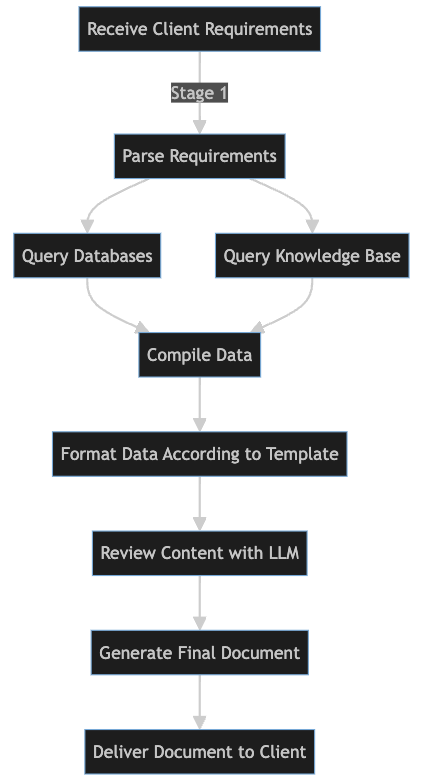
Begin by mapping out the overall architecture of your workflow. Identify the key stages in the process, the data required at each stage, and how different blocks will interact.
Consider using conditional logic to handle different pathways within the workflow. For instance, certain inputs might trigger different blocks or outputs depending on their content.
Example:
Stage 1:Receive client requirements and parse them.
Stage 2:Query databases and knowledge bases for relevant information.
Stage 3:Compile the data and format it according to the template.
Stage 4:Review and adjust the content using an LLM block.
Stage 5:Generate and deliver the final document.
3. Utilize Custom Blocks
For highly specific tasks, consider creating custom blocks using the SmartSpace developer SDK (COMING SOON). Custom blocks allow you to implement bespoke logic, integrate with external APIs, or perform operations that go beyond the capabilities of the standard blocks.
Custom blocks can be programmed to handle specific inputs and outputs, run unique processing steps, and even integrate with external services like machine learning models or third-party data providers.
Example:
A custom block that interfaces with an external CRM system to pull client-specific data for use in an RFP response.
4. Incorporate Conditional Logic and Loops
Use conditional logic to create branches within your workflow. This allows the flow to make decisions based on the data it processes, leading to different outcomes depending on the input.
Implement loops to handle repetitive tasks or to process arrays of data. For example, you might loop through a list of documents to extract key information from each one, or iterate over a set of conditions to determine the best course of action.
Example:
A loop that iterates over a list of client requirements, querying a knowledge base for each one, and compiling the responses into a single document.
5. Integrate Multiple Data Sources
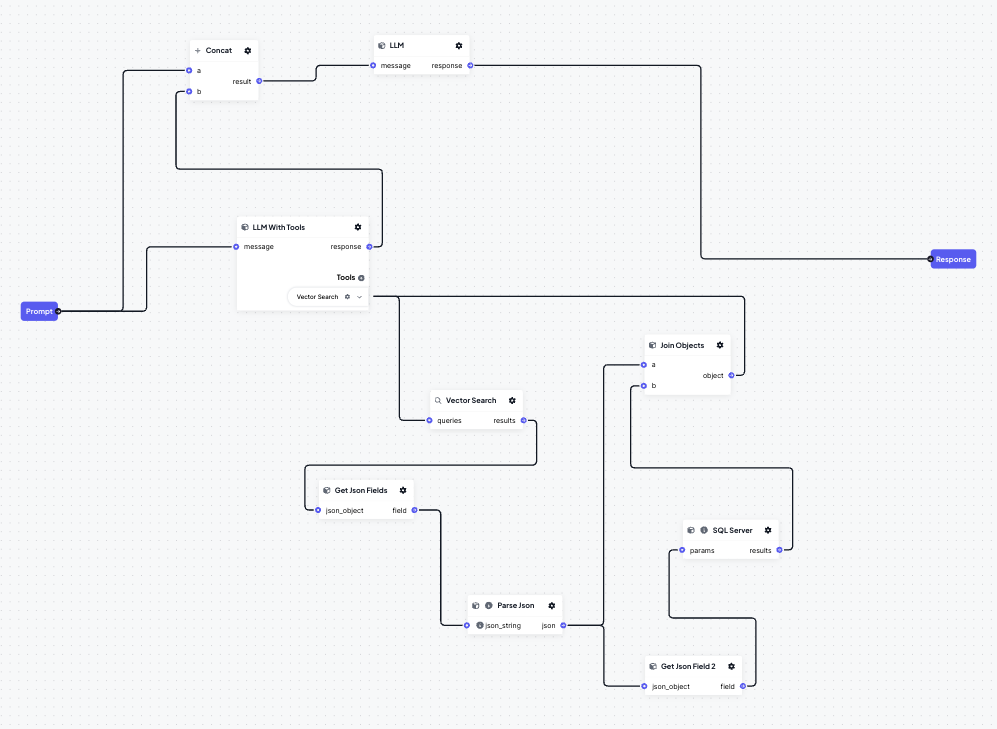
Advanced flows often require the integration of multiple data sources. Use the appropriate blocks (such as SQL Server, Vector Search, or API calls) to pull data from various locations. Ensure that the data is correctly formatted and that any necessary transformations are performed before it enters the workflow.
Manage data flow between blocks carefully, ensuring that data integrity is maintained throughout the process.
Example:
Pulling product specifications from a SQL database, client preferences from a CRM, and legal requirements from a document repository, then combining them into a cohesive RFP response.
6. Test Extensively in the Sandbox
Given the complexity of advanced flows, extensive testing is crucial. Use the Sandbox to simulate different scenarios, including edge cases, and observe how the flow handles each one.
The developer SDK will enable local testing of blocks within an IDE for a robust development experience.
Pay special attention to the performance of custom blocks and any conditional logic to ensure that the flow operates as intended under all conditions.
7. Deploy and Monitor
Once testing is complete, deploy the advanced flow in a controlled environment. Continuously monitor its performance using the Debugger and other monitoring tools to catch any issues early.
Collect feedback from end-users or stakeholders to refine the workflow further, adjusting as necessary to improve efficiency or add new functionality.
8. Optimize for Performance
After deployment, continue to optimize the flow for performance. This might involve streamlining data paths, reducing the number of blocks or connections, or optimizing custom block code.
Monitor resource usage and execution times, particularly in high-demand environments, and adjust the workflow to ensure it scales effectively.
Best Practices for Creating Advanced Flows
Modular Design:Break down complex processes into smaller, reusable modules. This makes the workflow easier to manage and troubleshoot.
Documentation:Maintain detailed documentation of each part of the workflow, including custom blocks, conditional logic, and data sources. This will help in maintaining the flow and making future adjustments.
Version Control:Use version control for your workflows, particularly when working with custom blocks or complex logic. This allows you to roll back changes if needed and maintain a history of the flow’s development.
Collaboration:Involve your team in the design and testing of advanced flows. Different perspectives can help identify potential issues and improve the overall design.
Scalability:Design with scalability in mind. Consider how the workflow will handle increased load or additional data sources and build in the flexibility to scale up as needed.
You may find these additional articles on Workflows useful:
