
ON THIS PAGE
Installing SmartSpace.ai
Effortlessly deploy SmartSpace.ai via Azure: Initiate with simple Entra setup. Select Standard or Pro plans for custom, secure AI integration tailored to your needs.
Pre-Install
SmartSpace Deployment Guide: Preparing Your Azure Environment
Before deploying SmartSpace.ai in your Azure environment, it’s important to ensure that all prerequisites are met and potential issues are addressed. Follow the steps below to prepare your environment and avoid common pitfalls:
1. Register Microsoft Providers
Ensure that the following providers are registered in your Azure subscription: Microsoft.App, Microsoft.ContainerService, Microsoft.CognitiveServices, Microsoft.Cache, and Microsoft.AlertsManagement.
To register these services, go to your Azure subscription, select Resource Providers under the Settings tab in the left-hand navigation. Search for the services listed above and click the “Register” button at the top of the page.
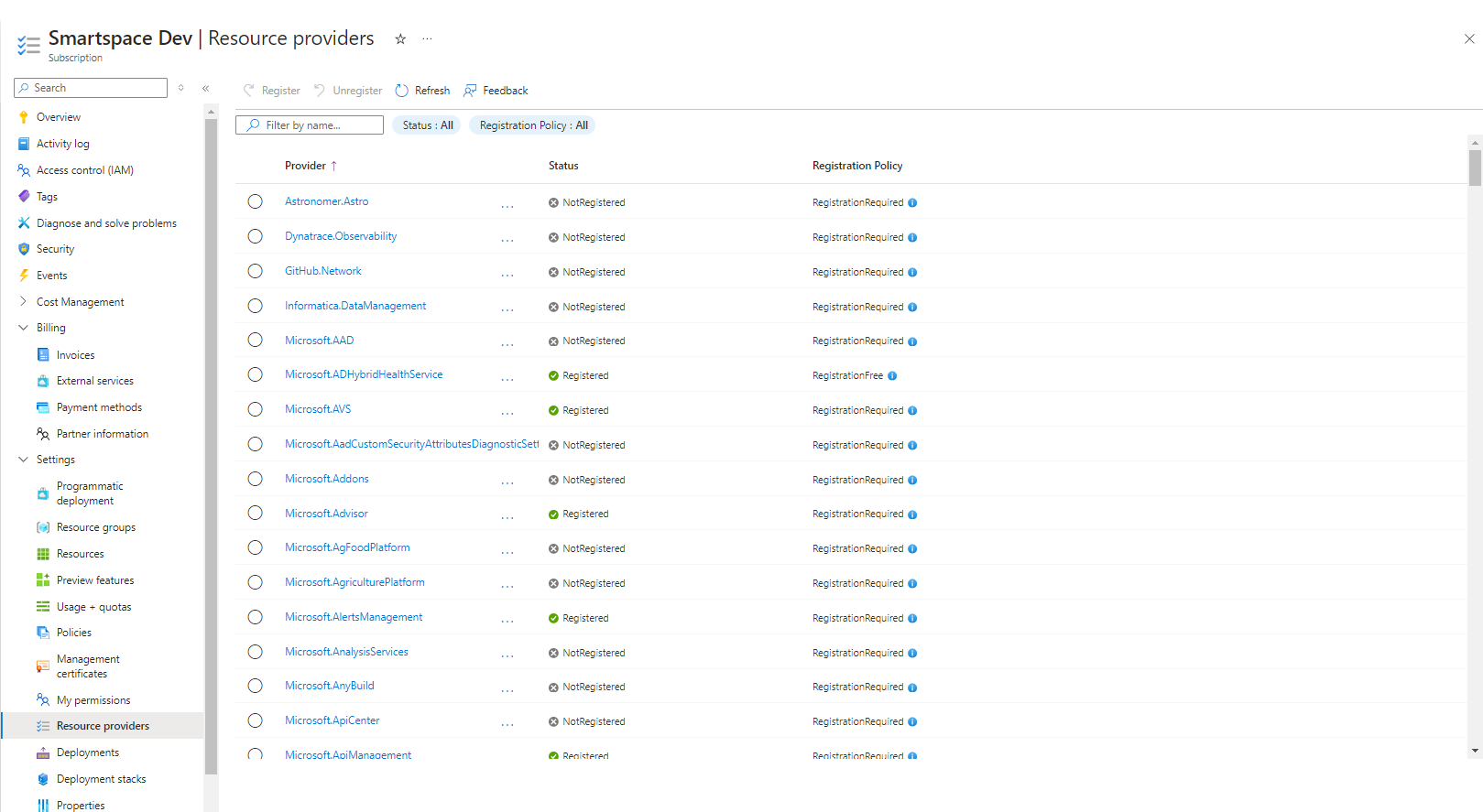
Failure to register these providers will cause errors during installation.
2. Purge Azure OpenAI Instances (Optional)
Navigate to the Azure OpenAI services and manage deleted resources. Purge any deleted resources associated with Azure OpenAI to free up quota.
For detailed instructions, refer to the Azure documentation on purging OpenAI resources.
Unpurged resources may consume quota and disrupt the deployment process.
3. Ensure Quota for Specific OpenAI Models
Confirm that your Azure subscription has sufficient quota for the OpenAI models required by SmartSpace.ai: Text-Embedding-Ada-002 (240 quota).
Insufficient quota for these models may restrict SmartSpace.ai’s functionality or prevent certain features from working effectively.
You may find the following links useful:
