
ON THIS PAGE
Installing SmartSpace.ai
Effortlessly deploy SmartSpace.ai via Azure: Initiate with simple Entra setup. Select Standard or Pro plans for custom, secure AI integration…
Post-Installation
1. Log into the Admin UI
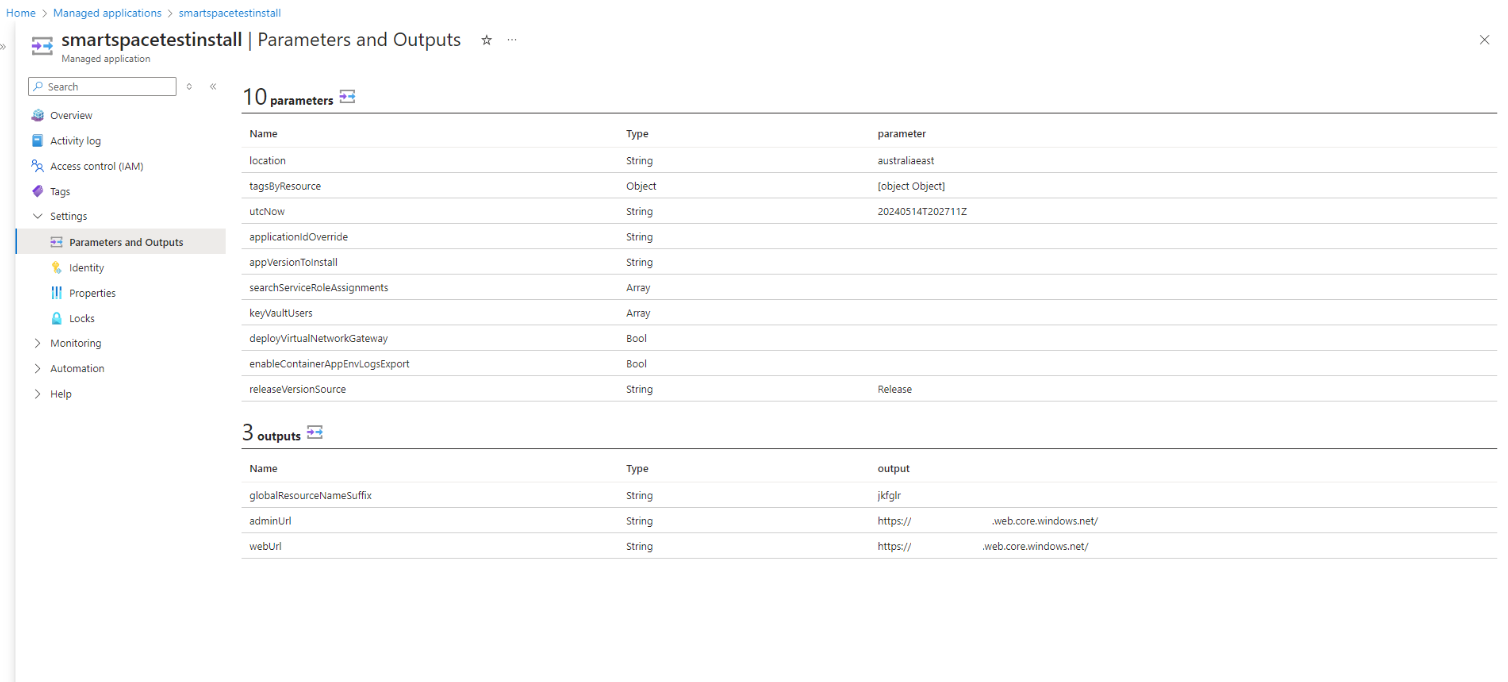
The Admin URL can be found in your deployed managed resource group. Open the link, and the first time you access the Admin UI, you will be prompted with a consent checkbox. Once consent is granted, proceed to step 2.
2. Granting Admin Consent to the SmartSpace Application
- Sign in to the Microsoft Entra admin center.
- Navigate to Identity > Applications > Enterprise applications > All applications.
- Enter “SmartSpace” in the search box, then select the application from the search results.
- Select Permissions under the Security tab.
- Review the permissions required by SmartSpace carefully. If you agree with them, click Grant admin consent.
3. Assigning Admin Users
- To assign admin users to SmartSpace, follow these steps:
- Open the Azure Portal and navigate to Microsoft Entra ID.
- In the left-hand navigation panel, select Enterprise Applications.
- Search for and open the SmartSpace application.
- Select Users and groups from the left panel.
- Click Add user/group.
- Under Users, select the users you want to assign the Admin role to.
- Under Select a role, choose the Admins role.
- Click Assign to complete the assignment.
- Admin users can now access the admin portal with the URL in step 1.
You may find the following links useful:
